Introduction
Buying a used mobile phone can be a smart way to save money, but it also comes with certain risks. A device that looks perfect on the outside may hide hidden problems such as battery degradation, software issues, fake or replaced parts, or even network and legal restrictions. Without proper checks, you might end up with a phone that stops working, underperforms, or requires expensive repairs shortly after purchase.
To make a safe and informed decision, it’s crucial to know exactly what to inspect before finalizing a purchase. This guide will walk you through 21 essential things to check before buying a used mobile phone, covering everything from IMEI verification and battery health to camera performance, software integrity, and seller credibility.
Whether you’re purchasing from an online marketplace, a local shop, or an individual seller, following these steps ensures that you avoid scams, identify hidden defects, and get the best value for your money. By taking the time to carefully examine the phone, you can enjoy the benefits of buying a used device without compromising on quality or performance.
1. Check the IMEI Number
Buying a used mobile phone without verifying the IMEI number can lead to major problems, such as buying a stolen or blacklisted device. Therefore, the first step in your checklist should always be to check the IMEI.
How to Find the IMEI on a Mobile Phone
Finding the IMEI (International Mobile Equipment Identity) is simple:
Dial *#06# on the phone’s keypad. The IMEI number will appear on the screen.
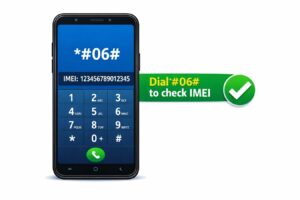
Alternatively, check under Settings → About Phone → Status → IMEI Information.
On iPhones, it can also be found on the back of the device or in the original box.
This number is unique to every phone and acts as its digital fingerprint.
Image:
Why IMEI Verification Is Important
Verifying the IMEI ensures you don’t buy a phone with legal or network issues:
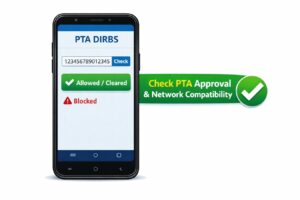
Check the IMEI online using official government portals (e.g., PTA DIRBS in Pakistan).
Confirm that the phone is not blacklisted or reported stolen.
Avoid phones that show mismatched or altered IMEI, which indicates tampering.
By performing this check first, you protect yourself from buying a device that could later be blocked from use or cause legal trouble.
Optional Tip:
Take a screenshot or note down the IMEI and double-check it with the seller before proceeding to the next steps.
2. Verify Network and Legal Status
Before buying a used mobile phone, it’s crucial to ensure that the device is legally compliant and compatible with your network. Skipping this step can lead to a phone that doesn’t work on your carrier or is blocked due to legal issues.
PTA Approval and Network Compatibility
- In Pakistan, all mobile phones must be PTA-approved to work on local networks.
- Check the device’s DIRBS status online using the IMEI number.
- A PTA-approved device will show as “Allowed” or “Cleared.”
- Make sure the phone is compatible with your network bands and carrier (e.g., 4G LTE, 5G if needed).
Tip: Avoid phones that show “Blocked” or “Not Approved” status, as they may stop working after a short period.
How to Avoid Blacklisted or Stolen Phones
- Verify that the phone is not reported stolen or lost.
- Ask the seller for proof of purchase or original invoice.
- Double-check the IMEI on official or trusted databases.
- Phones with a blacklisted or altered IMEI may lose network access or be illegal to use.
By completing this step, you ensure that the phone is fully functional, legal, and compatible with your network before moving on to physical inspection.
Image:
3. Research the Seller’s Credibility
Before buying a used mobile phone, it’s essential to ensure that the seller is trustworthy. Buying from an unreliable source can lead to scams, stolen devices, or hidden defects.
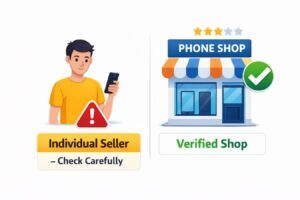
Buying from Individuals vs Shops
- Individual Sellers:
- Often cheaper but higher risk.
- Always meet in a safe, public place.
- Verify their identity and ask for a receipt or proof of purchase.
- Shops / Verified Stores:
- Slightly higher price but safer.
- Check shop reviews and ratings online.
- Some shops offer short-term warranties or return policies, which add extra security.
Red Flags to Watch Out For
- Price too good to be true — might indicate a stolen or damaged phone.
- Reluctance to show the phone physically or allow testing.
- Sellers refusing to share the IMEI, original invoice, or accessories.
- Poor communication or hidden terms.
Tip: Always do background research before making a purchase to avoid losing money or getting a problematic device.
Image:
4. Compare the Market Price
Before buying a used mobile phone, always check the market price. Comparing prices ensures that you get a fair deal and avoid overpaying for a device that might have hidden issues.

Used vs New Mobile Price Comparison
- Check the price of the same model when new to understand depreciation.
- Compare prices across online marketplaces, local shops, and classifieds.
- A phone priced much lower than average may indicate defects, fake parts, or stolen devices.
- Conversely, a price higher than average without valid reason isn’t justified.
How to Identify Overpriced or Suspicious Deals
- Look for price trends on popular online platforms (e.g., OLX, Daraz, or local stores).
- Check if the phone includes original accessories and warranty, which may justify slightly higher prices.
- Be cautious if the seller pressures you to buy quickly or refuses to negotiate.
By performing a market price comparison, you ensure your investment is safe and reasonable.
5. Inspect the Physical Condition
The physical condition of a used mobile phone gives the first indication of how well it was handled by the previous owner. Checking the device thoroughly helps avoid hidden damage that could affect performance or durability.
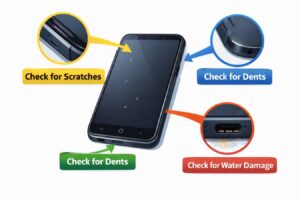
Checking the Body, Frame, and Back Panel
- Examine the phone’s frame, edges, and back panel for dents, scratches, or cracks.
- Look for signs of water damage, such as discoloration or corrosion near ports.
- Ensure that the back cover fits properly and isn’t loose or replaced with a non-original part.
Tip: Small cosmetic scratches are normal, but large dents or warped frames can indicate past accidents.
Signs of Drops, Scratches, Water Damage, or Repairs
- Check for uneven gaps between screen and body, which may indicate repairs.
- Inspect screws or joints; missing or stripped screws suggest the phone has been opened.
- Use a flashlight to spot any watermarks or corrosion inside ports or near buttons.
- Ask the seller about any previous repairs or replacements.
By carefully inspecting the physical condition, you reduce the risk of buying a phone that could fail or require costly repairs soon after purchase.
Image:
6. Test the Display and Touchscreen
The display and touchscreen are critical components of a mobile phone. A damaged screen or unresponsive touchscreen can make daily use frustrating and costly to repair. Always test them carefully before buying a used phone.
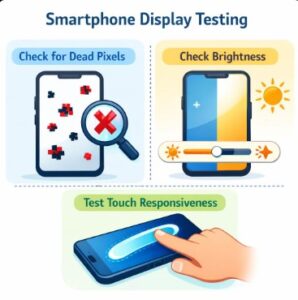
Check Screen Quality
- Look for dead pixels, discoloration, or uneven brightness across the screen.
- Test the screen under different lighting conditions to spot color issues.
- Check the clarity of images, videos, and text.
Test Touch Sensitivity and Responsiveness
- Swipe across the entire screen to ensure smooth response.
- Open multiple apps and type to test for lag or unresponsive areas.
- Try multi-touch gestures (pinch, zoom) to confirm full functionality.
Properly testing the display ensures that you are not buying a phone with hidden screen issues that could require expensive repairs.
Image:
7. Check Battery Health
Battery health is one of the most important factors in a used mobile phone. A degraded battery can reduce usage time significantly and may require replacement soon after purchase.
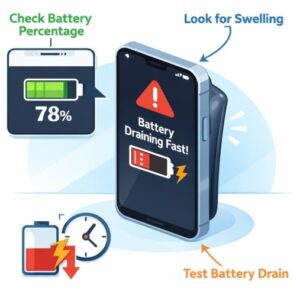
Signs of Battery Degradation
- Check if the phone drains unusually fast even after a full charge.
- Observe if the phone shuts down unexpectedly at higher battery percentages.
- Look for physical signs like a swollen battery or back panel bulging.
How to Check Battery Health
- Use built-in settings or apps to check battery health percentage (e.g., iPhone Settings → Battery → Battery Health).
- Android users can use apps like AccuBattery to check capacity and charge cycles.
- Confirm that the battery still retains 80% or more of its original capacity for reliable use.
Regularly checking battery health prevents buying a phone that may need costly battery replacement soon after purchase.
8. Test the Front and Rear Cameras
The cameras are one of the most used features on a smartphone. Testing both front and rear cameras ensures you get clear photos and videos without any defects.
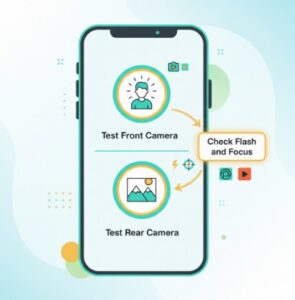
Photo and Video Quality Check
- Take photos in different lighting conditions (bright light, low light).
- Record videos to check for stability, focus, and clarity.
- Test features like zoom, flash, and HDR to ensure full functionality.
Autofocus and Flash Testing
- Tap on objects in the frame to test autofocus accuracy.
- Test the flash by taking a photo in a dim environment.
- Check for lens scratches or dirt that can affect image quality.
Properly testing the cameras ensures you avoid devices with blurry photos, malfunctioning autofocus, or flash issues.
9. Check Speakers and Microphone
Speakers and microphone are crucial for calls, media, and recordings. Ensuring they work properly avoids poor audio experience.
Speaker Sound Quality Test
- Play music or a video to check sound clarity and volume.
- Listen for distortion, crackling, or uneven sound.
- Test both main speakers and earpiece speakers.
Microphone Functionality Test
- Make a test call to check voice clarity.
- Record a short audio or video to check microphone quality.
- Ensure noise cancellation features work as expected.
Testing speakers and microphone ensures the phone delivers good audio performance for calls and media.
10. Test All Physical Buttons
Power Button, Volume Keys, and Mute Switch
- Press all buttons to ensure they respond properly.
- Look for loose or stuck buttons.
- Test long press and short press functions.
Practical Tips
- Test during normal use and in combination with other actions (e.g., volume + power for screenshot).
11. Inspect Charging Port and Headphone Jack
Check Charging and Audio Ports
- Insert charging cable and ensure secure fit.
- Check for fast charging if supported.
- Insert headphones to test audio output.
Practical Tips
- Look inside ports for dust, corrosion, or loose connections.
12. Test SIM Card and Call Functionality
Network and Call Test
- Insert your SIM and check signal strength.
- Make and receive a call to test clarity.
Practical Tips
- Try multiple SIMs if possible.
- Check mobile data performance during calls.
13. Check Connectivity Features
Wi-Fi, Bluetooth, GPS
- Connect to Wi-Fi and test speed.
- Pair a Bluetooth device.
- Open maps to check GPS accuracy.
Practical Tips
- Test mobile data as backup.
14. Confirm Account and Lock Status
iCloud or Google Lock
- Check iPhones for iCloud lock.
- Check Android devices for Google FRP lock.
Practical Tips
- Ensure phone can be factory reset.
- Avoid locked devices.
15. Check Software and OS Version
Updates and Software Integrity
- Check if latest OS version is installed.
- Look for unofficial or tampered software.
Practical Tips
- Avoid phones with custom ROMs if not experienced.
16. Test Performance and Heating
Performance Check
- Open multiple apps, test multitasking.
- Observe for lag or freezes.
Heating Check
- Run apps or games to detect overheating.
17. Verify Storage and RAM
Storage and Memory Check
- Check total and available storage.
- Confirm RAM is as advertised.
Practical Tips
- Open multiple apps to confirm smooth performance.
18. Check for Fake or Replaced Parts
Verify Original Components
- Inspect screen, battery, and camera for genuineness.
- Check for mismatched parts.
Practical Tips
- Compare with original device images online.
19. Ask for Original Box and Accessories
Included Items
- Check for charger, cable, earphones.
- Original box adds resale value.
Practical Tips
- Missing accessories may indicate prior damage or replacements.
20. Request Proof of Purchase
Invoice or Receipt
- Confirm ownership.
- Avoid stolen devices.
Practical Tips
- Keep a copy for warranty or resale.
21. Check Warranty or Return Policy
Warranty Verification
- Check shop warranty availability.
- Confirm return policy.
Practical Tips
- Avoid phones with no warranty if buying from shops.
Extra Tips for Buying a Used Mobile Phone
Practical Guidance
- Perform a factory reset in front of seller.
- Avoid deals that seem too good to be true.
- Test phone for at least 10–15 minutes.
- Research common issues for the model.